
The Mondial Relay shipping label generated by Leboncoin is presented as a PDF containing a barcode and the routing information for the package. Its proper printing is essential for acceptance at the pickup point and the activation of tracking. Here we detail the complete procedure, the accepted formats, and alternatives when traditional printing is not possible.
Format of the Mondial Relay PDF label and printing constraints
The PDF file generated by Leboncoin for a Mondial Relay shipment is in A4 format with a centered barcode. This barcode must remain readable by the merchant’s scanner at the pickup point. Printing that is too small, cropped, or in low resolution renders the package unacceptable.
The PDF is accessible from two locations: the “Sales” tab of your Leboncoin account and the shipping confirmation email sent to the address associated with the account. This duplicate is useful in case of disconnection or application bugs, as the link in the email remains active as long as no pickup has been recorded by Mondial Relay.
We recommend printing in black and white, standard quality, on plain paper. The automatic cropping of certain browsers (notably Safari on mobile) can trim the margins of the barcode. Using a dedicated PDF reader or downloading the file before printing avoids this problem. Knowing how to print a Mondial Relay label from Le Bon Coin correctly will prevent a rejection at the drop-off.
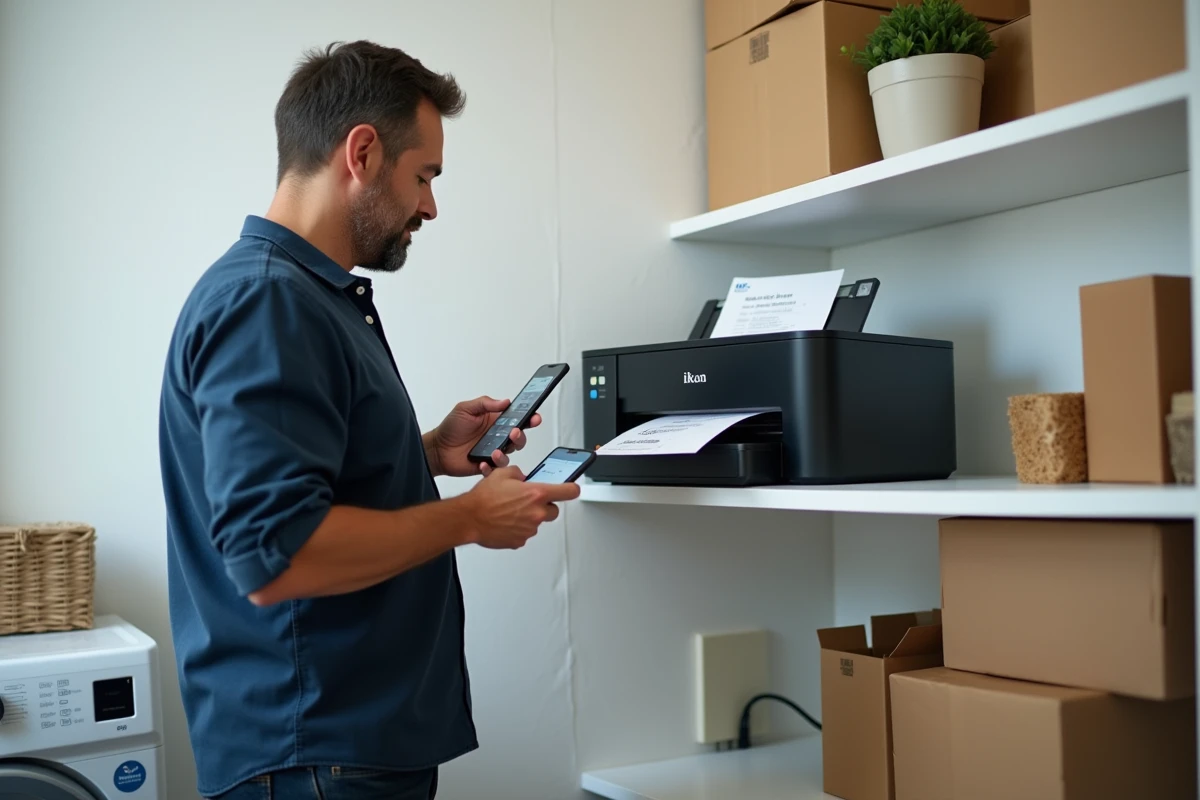
Printing via Bluetooth thermal printer in A6 format
Bluetooth thermal printers in A6 format are now widely compatible with Leboncoin/Mondial Relay labels. The principle is simple: download the PDF from the secure messaging of Leboncoin, then send it directly to the printer via Bluetooth.
Thermal printing requires no ink cartridges. The output is sharp, the barcode perfectly readable, and the A6 format corresponds to the standard label size accepted at the pickup point.
A technical point to check: the printer driver must be configured not to resize the document. On Android, the “Fit to Page” option in the print settings must be disabled. On iOS, using the manufacturer’s app rather than the native print dialog yields better results.
Shipping without a printer: QR code and zero label mode
Leboncoin offers a shipping option without a printer that relies on a QR code displayed in the app. This QR code replaces the traditional paper label and works in two distinct contexts.
Drop-off at a merchant pickup point
The merchant has had a “Leboncoin / QR code” mode in their interface since late 2025. They scan your QR code, which automatically associates the package with your sender profile and generates the label on-site. This update has significantly reduced manual entry errors of tracking numbers and unrecognized tracking issues.
Drop-off in a Mondial Relay locker
The zero label option via QR code is also compatible with some Mondial Relay lockers. The sender scans the QR code directly on the terminal, places the package in the assigned locker, and the process concludes without handling a paper label.
For both methods, the QR code remains available as long as the package has not been picked up. It can be found in the “Sales” tab and in the confirmation email.
- The QR code does not have a fixed expiration time, but it expires as soon as the first pickup is recorded by the carrier
- Only one QR code is generated per transaction: it is impossible to duplicate it for a second shipment
- In case of scan failure, the merchant can manually enter the shipping number visible under the QR code in the app
Troubleshooting common issues at the drop-off
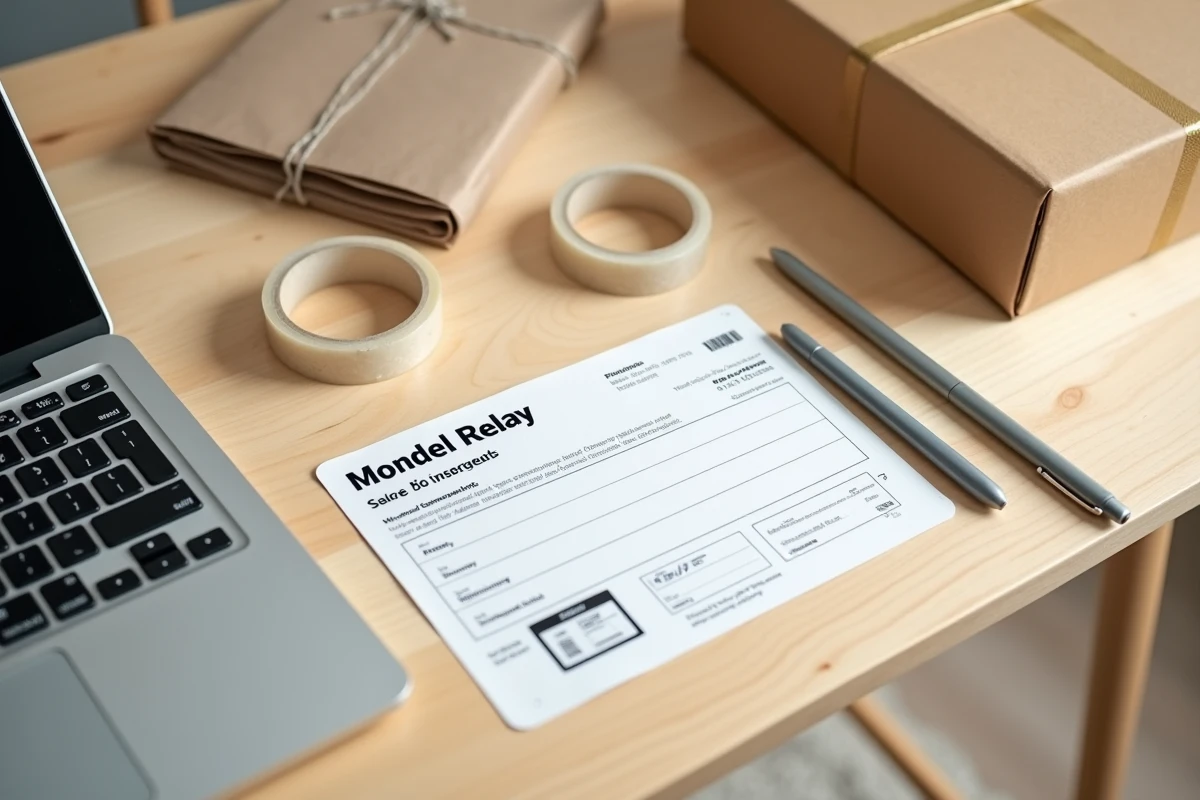
The rejection of packages at the pickup point due to an unreadable label remains the most frequent difficulty. Several situations occur regularly.
- Cropped barcode after printing from a smartphone: the mobile browser applied zoom or cropping. Download the PDF, then open it in a dedicated app before printing
- Label printed on photo or glossy paper: the merchant’s scanner struggles to read the reflection. Prefer standard matte paper
- QR code displayed on a cracked or dim screen: increase the brightness to maximum and clean the screen before presenting it to the merchant
- Tracking stuck on “awaiting pickup” after drop-off: the QR code mode at the pickup point sometimes takes a few hours to synchronize the status, which does not indicate a label problem
One last point often overlooked: the PDF label and the QR code are not interchangeable. If you have printed the label and attached it to the package, the merchant will process the shipment by scanning the paper barcode. Presenting the QR code on your phone in addition creates confusion in the system and may generate a duplicate pickup. Choose one method or the other, not both simultaneously.